Version: 2.5
Last Updated: July 2026
1. Introduction
The SMRP Automator is a Chrome Extension designed to streamline data entry for Dietetic modules within the Ministry of Health's SMRP Portal (MyHDW). It integrates directly with Google Sheets to eliminate manual double-entry, automates patient registration, and ensures data accuracy.
Key Features:
- Extreme Speed & Timeout Guard: Executes clinical data entry in under 3 seconds, with a 15-second safety timeout for slow-loading portals.
- Clinical Safety Guards: Includes a strict IC Match Guard and an "Unseen" patient bypass to prevent cross-patient data errors.
- Three-Way Integration: Supports Inpatient (
P.DALAM), Outpatient (P.LUAR), and Group Counseling (MNT BERKUMPULAN). - Audit Trail: Built-in history log to track your recent successful entries.
- Registration Automation: Auto-generates sequential Registration Numbers (e.g.,
DT10001).
2. Installation Guide
Video 2.0: SMRP Automator Installation & Setup Guide
Prerequisite: Dual Account Setup
Before installing, please ensure you are logged into two Google accounts in your Chrome browser simultaneously:
Before installing, please ensure you are logged into two Google accounts in your Chrome browser simultaneously:
- Your official Workspace email (
@moh.gov.my) - A personal Gmail account (e.g.,
yourname@gmail.com)
You can install the SMRP Automator directly from the Chrome Web Store.
Step 1: Download from Store
- Visit the Chrome Web Store Link.
- Click the blue "Add to Chrome" button.
- Confirm by clicking "Add extension" in the popup.
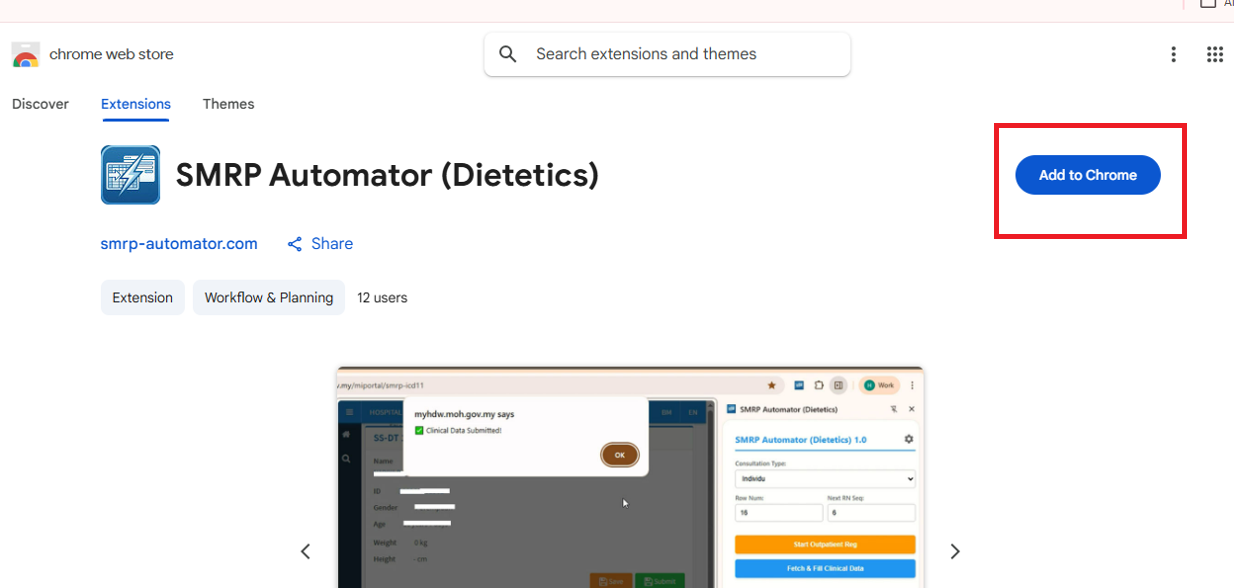
Figure 2.0: Clicking 'Add to Chrome'
Step 2: Troubleshooting "Access Denied" Errors
Problem: When visiting the store link, you may see an error message saying:
"We are sorry, but you do not have access to Chrome Web Store."
"We are sorry, but you do not have access to Chrome Web Store."
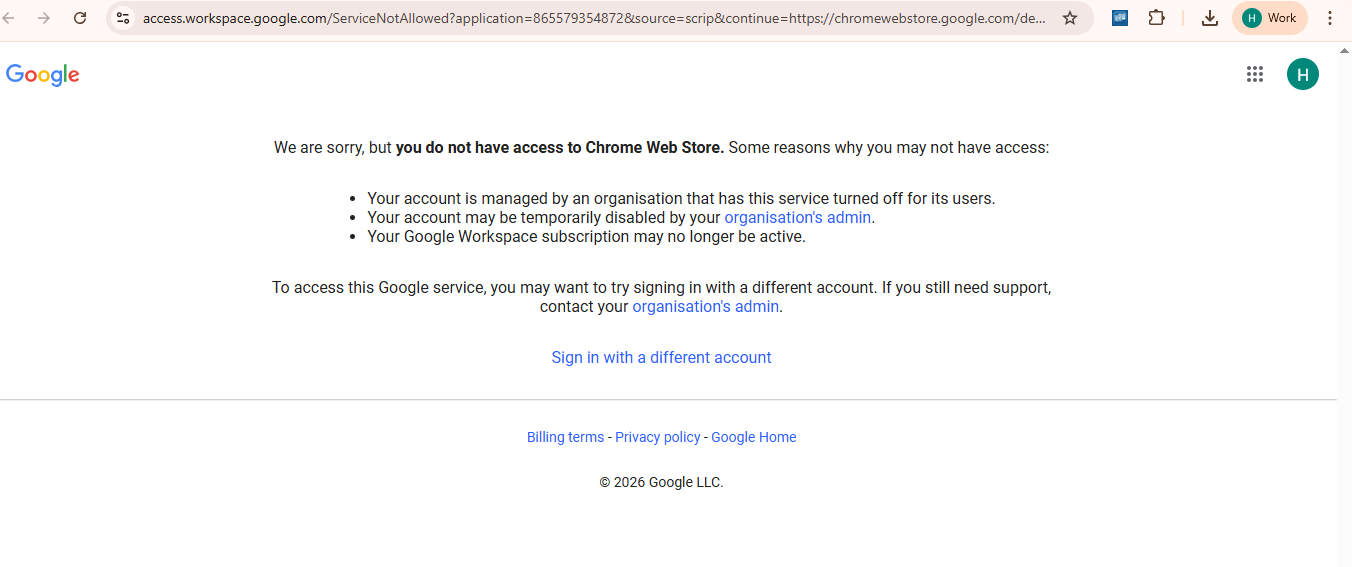
Figure 2.1: The Access Denied Error
Why is this happening?
Your browser is currently signed in with your official Ministry of Health account (@moh.gov.my). The system administrator for MOH has blocked access to the Chrome Web Store for security reasons.
The Solution:
You must switch to your personal Gmail account to perform the download.
- Click your Profile Icon at the top right of the Chrome browser.
- Select your personal account.
- Once switched to the personal profile, reload the Web Store link.
- You will now be able to click "Add to Chrome".
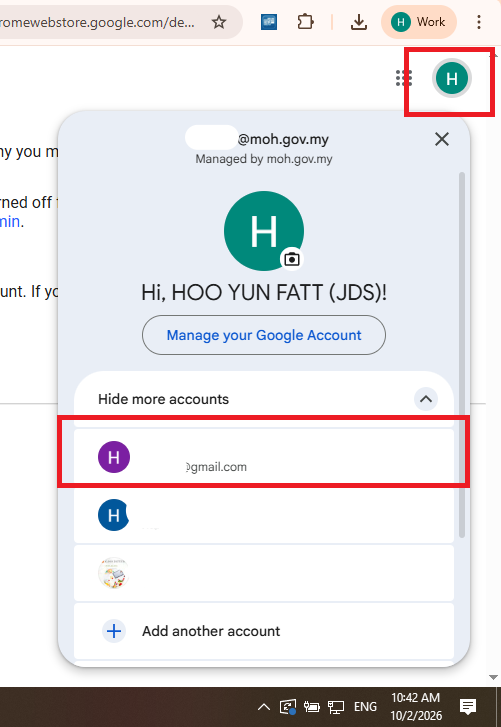
Figure 2.2: Switching Chrome Profiles
3. Initial Setup
- Open Setup: Click the Gear Icon inside the extension.
- Link Spreadsheet: Enter the Spreadsheet ID from your Google Sheet URL (the text between /d/ and /edit), then select the sheet name.
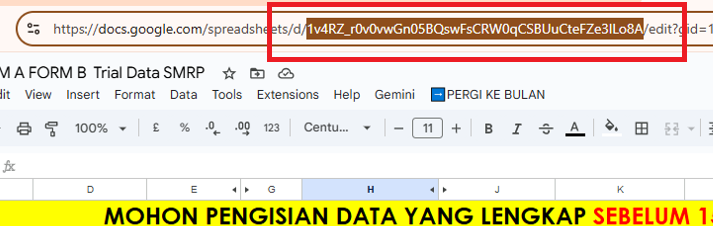 Figure 4.1: Finding the Google Sheet ID
 - Practitioner Credentials:
Enter your own IC Number or AHP Number into the "Dietitian IC/ AHP Number" field in the settings menu.
- DT Prefix:
Enter your department code (e.g.,
DT01,DT10,DT30).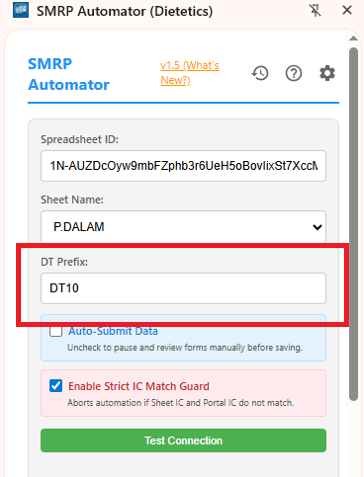
Figure 4.4: Configuring Registration Prefix and Sequence - Login: Click Login. A Google sign-in window will appear. You MUST log in using your official Workspace Email (@moh.gov.my). DO NOT use the personal email that you used to download the extension.
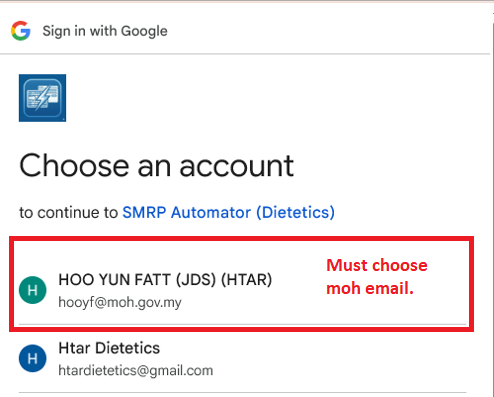
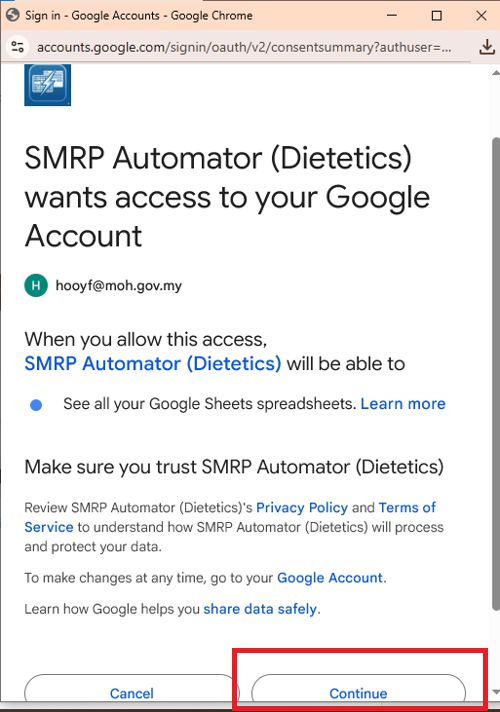 Figure 4.5: Successful Connection using Workspace Email
4. Workflows
Before You Begin: Preparation
1. Locate Row Numbers: Find the row containing the desired patient data in your Google Sheet by checking the row index on the left (e.g., Row 4). Enter that row number into the workspace field.
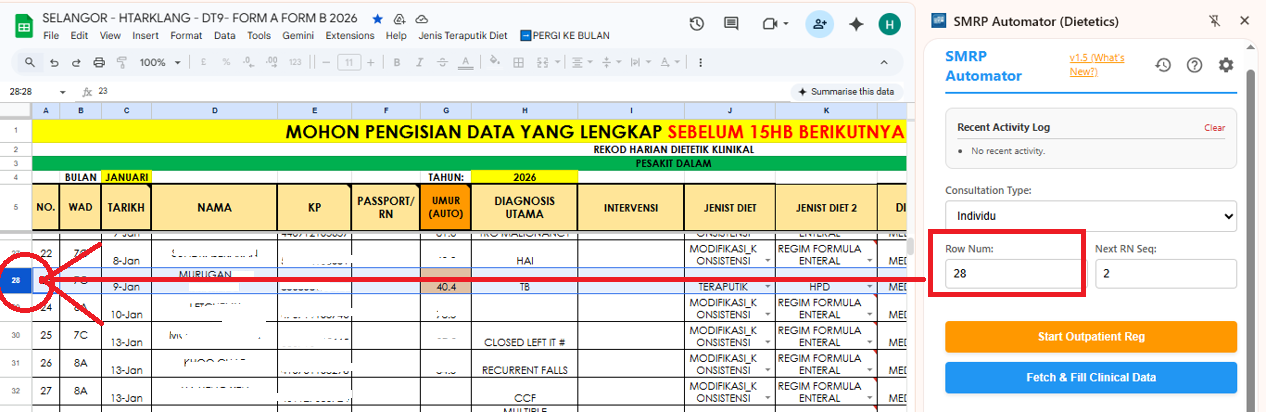
Figure 5.0: Locating row index reference indices
2. Launch Point: Access your SMRP account portal. You MUST open the base Patient Search Page before clicking any execution buttons; the extension will start by auto search for patient IC number if you trigger it from this specific page.
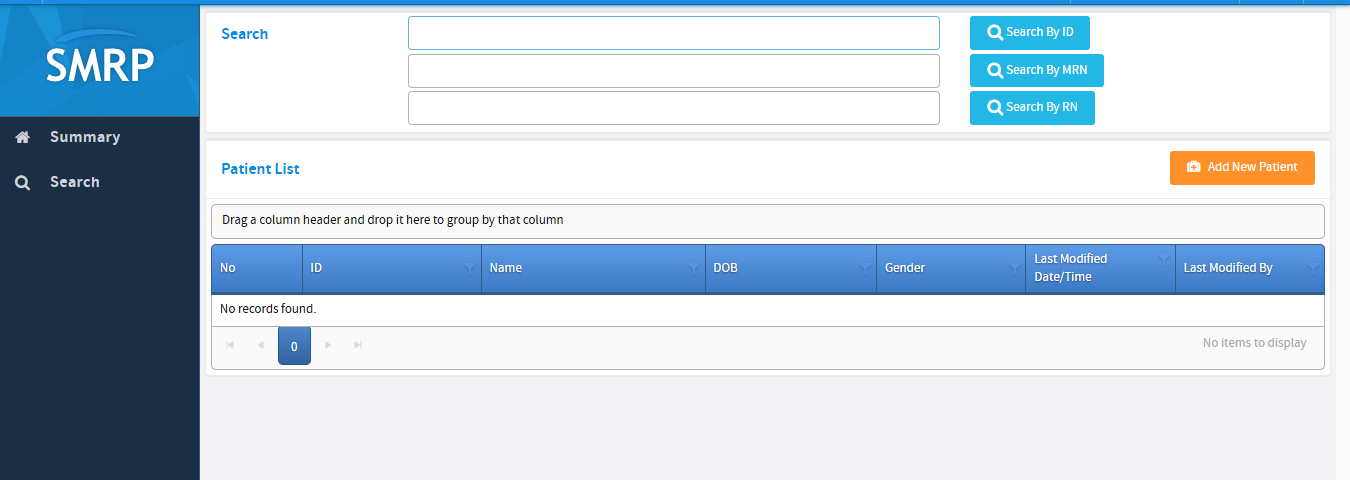
Figure 5.1: The SMRP Patient Search view configuration
Workflow A: Add Clinical Support / RN Registration
Applies to new outpatient (P.LUAR) or group (MNT BERKUMPULAN) cases that require a valid sequential Registration Number (RN) generated beforehand.
Video 5.0: Automated Add Clinical Support / RN Registration
- Open the extension and change the target sheet name to
P.LUARorMNT BERKUMPULAN. - Enter the target patient's Row Number.
- Click the green button: Add Clinical Support (RN Registration).
▶ How does the Automator works
The extension will automatically click "Add Clinical Support", fill in the Date (08:00 AM), generate the RN using your DT Prefix + Sequence, and submit the form.
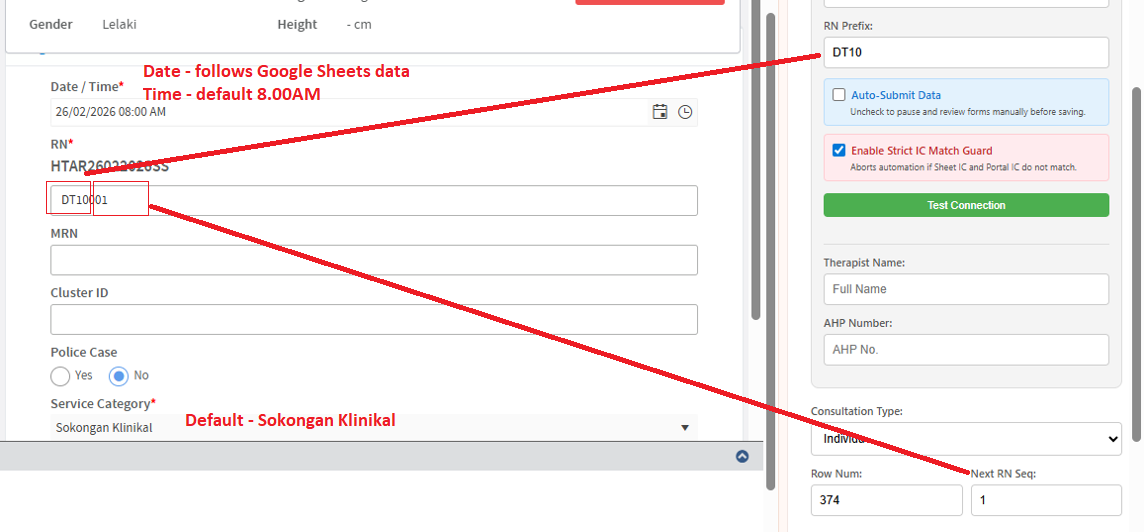
Automator running registration process
-
Self-Healing RN Adjustments:
If the portal returns an error indicating the sequence code
already exists
(
rn already exists / telah wujud), the script automatically increments the sequence number (for example,DT10001 → DT10002) and resubmits without interrupting the automation cycle.
Workflow B: Clinical Form Data Entry Automation
Processes complete clinical fields entries directly into the SMRP website
Video 5.1: Data Entry into SMRP Website
Scenario 1: Outpatient Modules (Individual Records)
- Verify your extension is targeting the
P.LUARsheet parameter and specify the row number. - Click the blue button: Fetch & Fill Clinical Data.
▶ How does the Automator work?
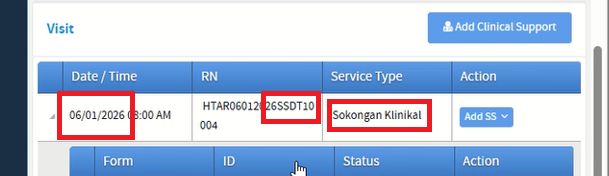
The extension scans for "Sokongan Klinikal" and "SSDT" in the RN list, finds the visit row matching your Sheet Date, verifies the patient's IC matches, opens the form, and fills out all clinical data instantly.
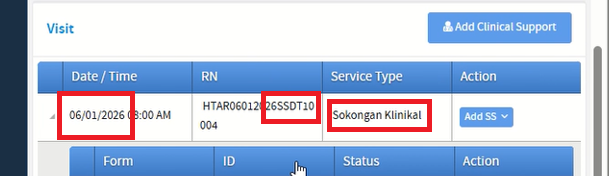
Automator filling outpatient forms
Scenario 2: Inpatient Modules (Ward Records)
- Change your configuration sheet target to
P.DALAMand enter the row index. - Click the blue button: Fetch & Fill Clinical Data.
▶ How does the Automator works
The extension checks Column Q to ensure the patient is not marked "Unseen". It then scans for "Pesakit Dalam" rows earlier than your seen date in E-Pelaporan, verifies the patient's IC, and fills the clinical form.
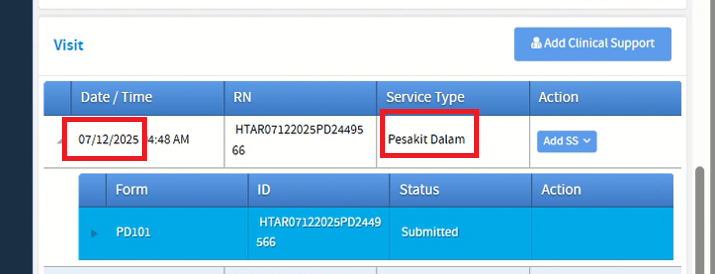
Automator filling inpatient forms
Scenario 3: Group Counseling Modules (Classes Records)
- Change your configuration sheet target to
MNT BERKUMPULANand enter the row index. - Click the blue button: Fetch & Fill Clinical Data.
▶ How does the Automator works
The extension finds the correct date row, verifies the IC, auto-sets "Consultation Type" to "Kumpulan / Kelas", and fills the rest of the form automatically.
Automator filling group forms
5. Handling Missing Diet Data (Non Selangor user)
Specific dietary information (Diet Type or Specific Diet) may be unavailable in your E-Pelaporan Google Sheet at the time of automated data entry. The Automator is equipped with an "Allow Incomplete" Bypass specifically for these two columns.
The 2 Missing Diet Columns
Depending on which sheet you are using, the Automator looks for the "Diet Type" (e.g., MODIFIKASI_KONSISTENSI, TERAPUTIK) and the specific sub-diet (e.g., Diet Lembut, Diet Diabetik) in the following locations:
| Sheet Name | Diet Type Column | Specific Diet Column |
|---|---|---|
| P.DALAM (Inpatient) | Column J | Column K |
| P.LUAR (Outpatient) | Column G | Column H |
| MNT BERKUMPULAN (Group) | Column F | Column G |
Please note that these columns are temporarily hidden in your E-Pelaporan Google Sheet. They will remain hidden while the Apps Script is under development and the dependent dropdown menus are being finalized.
How to Execute with Missing Data
CRITICAL STEP: Before starting, you MUST toggle OFF (uncheck) the Auto-Submit Data setting in the extension popup.
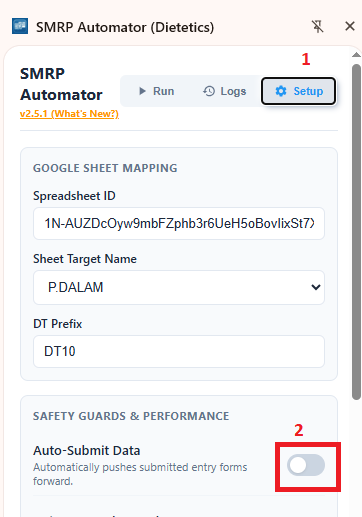
Figure 5.1: Toggle off Auto-Submit
- During "Fetch & Fill Clinical Data": The bot will successfully fill all available information and skip the blank Diet Type dropdowns. The bot will then pause, giving you a 60-second window to manually select the diet types and you need to click the 'Submit' button yourself.
- During "Add Clinical Support": Not affected.
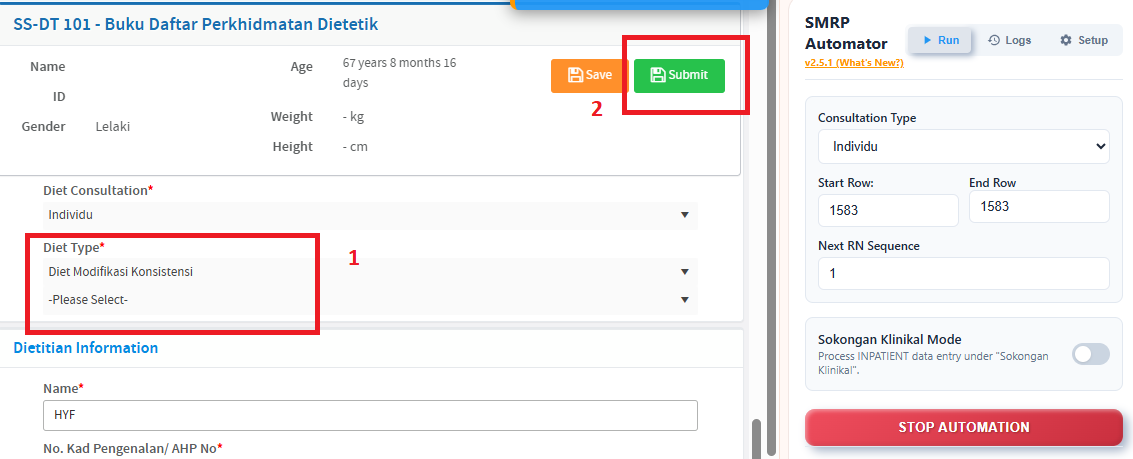
Figure 5.2: Manual Fill Diet Type & Click Submit
6. Troubleshooting Guide
Navigation & Safety Errors
| Error / Symptom | Solution |
|---|---|
| Popup: "❌ IC Mismatch Guard!" | The IC number in your Google Sheet does not match the patient currently open in the MyHDW Portal. Verify you are on the correct patient's file. If the portal is genuinely missing the IC, you can bypass this by unchecking the Strict IC Match Guard in settings.
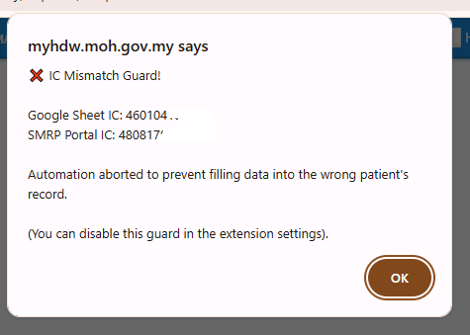
Figure 6.0: IC Mismatch Guard Alert
|
| Popup: "⏸️ The data in row is Unseen..." | Column Q in the P.DALAM sheet is marked as "True". The automator safely aborted to prevent filling out a blank form.
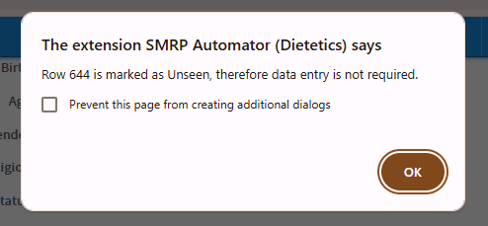
Figure 6.1: Unseen Patient Bypass Alert
|
| Popup: "No Inpatient Visit found earlier than ...... Check portal dates." |
1. Check Dates: Ensure Sheet date matches Portal. 2. Expand View: Scroll down in SMRP and change items per page to All or 20 or Toggle the "Enable Auto-Expand Grid" option under setting. 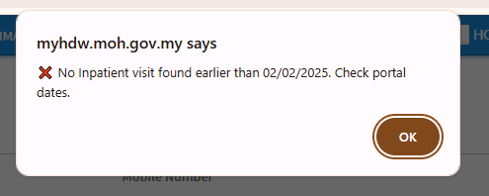
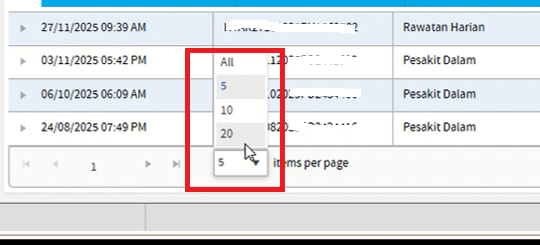
Figure 6.2: Expanding items per page in SMRP
3. Not Registered as Inpatient: If the error persists even after changing the items per page setting to 'All', it means the hospital registry didn't register this patient as 'Pesakit Dalam'. You are required to create an RN using the "Start Outpatient Registration" button. After creating the RN, toggle the "Inpatient: Data Entry Under "Sokongan Klinikal"" option, then click the "Fetch & Fill Clinical Data" button. 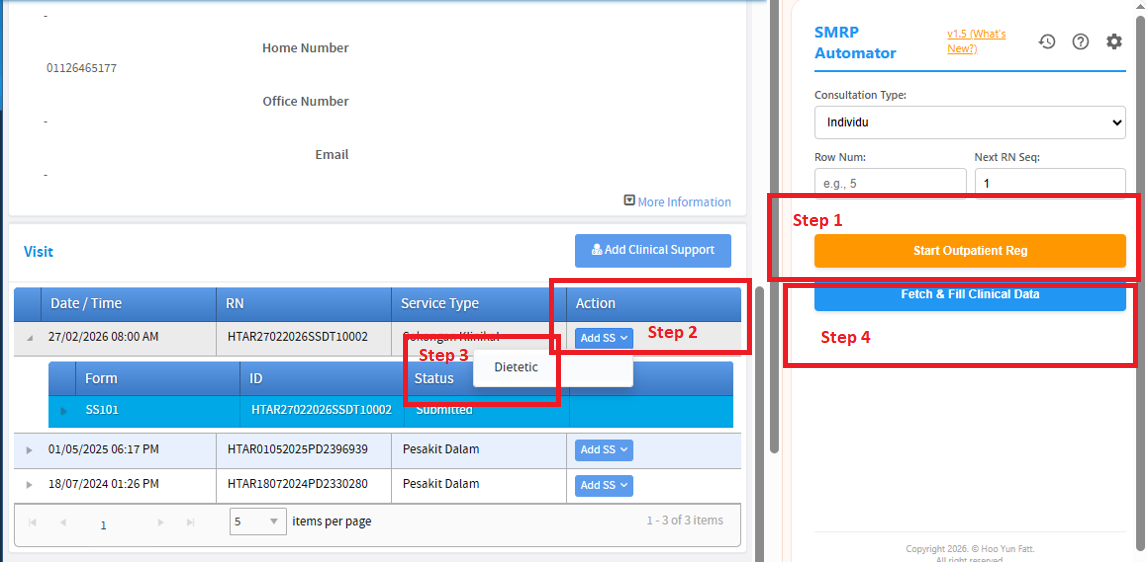
Figure 6.3: Manually registering and entering Dietetic page
|
| "⏳ Timeout: MyHDW Portal took too long..." | The portal took longer than 15 seconds to load the form. Refresh the portal page and try clicking the extension button again.

Figure 6.4: Timeout Safety Alert
|
Data & Connection Errors
| Error / Symptom | Solution |
|---|---|
| "Auth Failed" / Connection Failed |
You authorized the wrong Google account. Click Sign Out button in the extension, then click Test Connection and select your @moh.gov.my email.
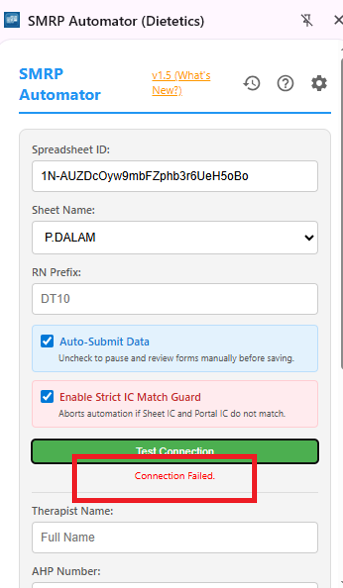
Figure 6.5: Connection Failed Error
|
7. View Modes
You can customize how the extension appears on your screen.
Option A: Sidebar Mode (Recommended)
Best for continuous data entry. The panel stays open while you navigate.
- Right-click the SMRP Automator icon.
- Check "Open in Side Panel".
- Click the icon to open the persistent side panel.
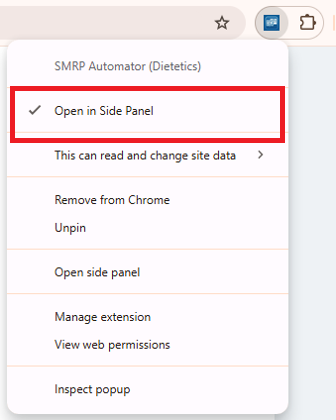
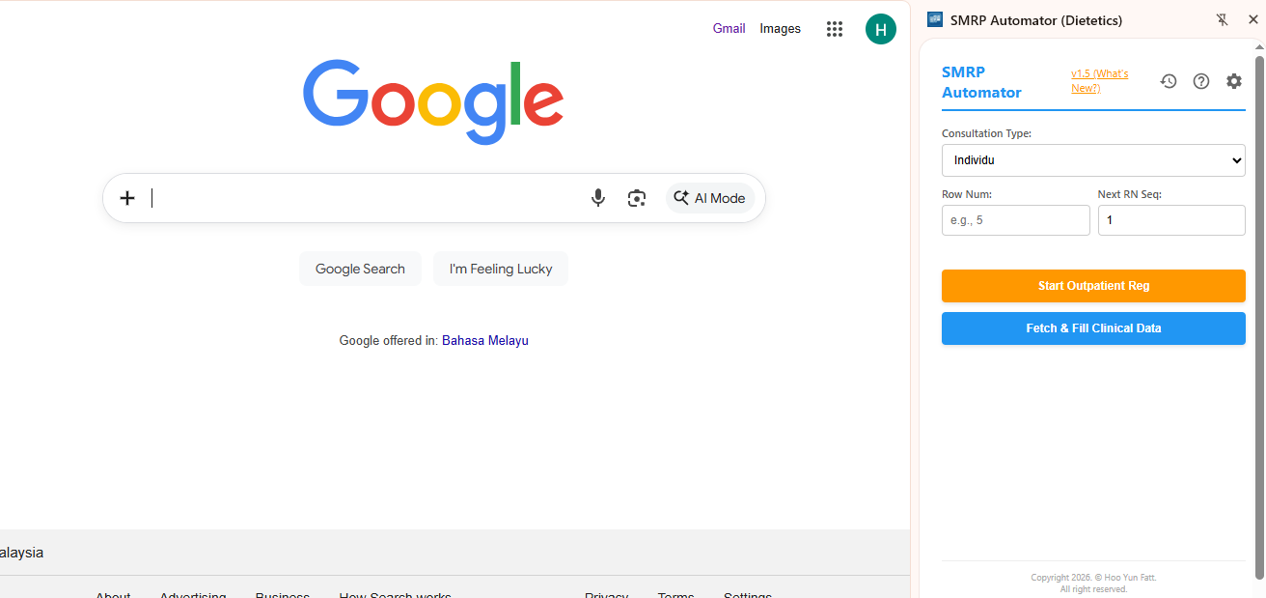
Figure 7.0: Sidebar Mode
Option B: Popup Mode (Default)
Best for quick, single-use actions.
- Right-click the extension icon.
- Uncheck "Open in Side Panel".
- Click the icon to open as a floating window.
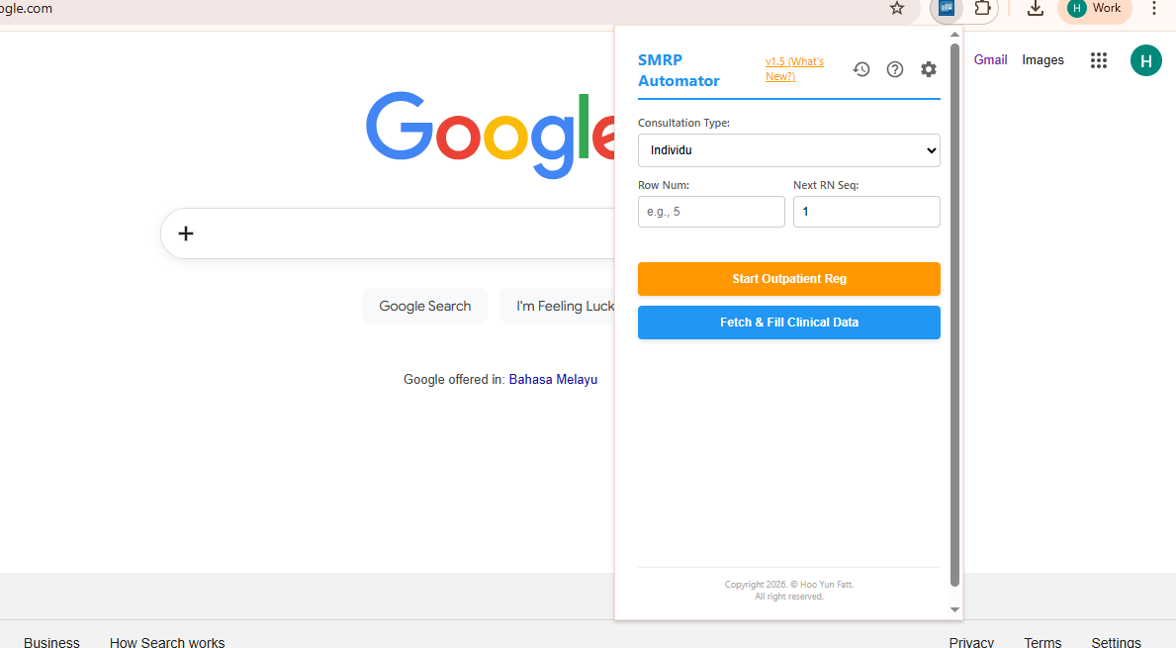
Figure 7.1: Popup Mode
8. Features Settings
You can enable or disable the following features from the Setup panel.
- Sokongan Klinikal Mode: Recommended if the Pesakit Dalam visit has not yet been created by the Unit Hasil for inpatient data. Instead of saving data under the default "Pesakit Dalam" pathway, the bot will process the data entry under the "Sokongan Klinikal" service pathway.
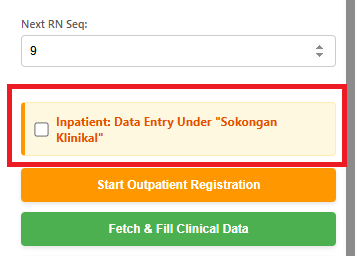 Figure 9.0: Inpatient: Data Entry Under "Sokongan Klinikal"
 - Auto-Submit Data: The extension will automatically click the final save/submit buttons for you. Uncheck this if you prefer the automation to pause right before submission, allowing you to manually review the filled form.
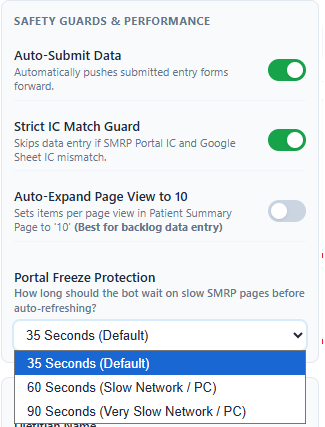 Figure 9.1: Settings
 - Strict IC Match Guard: A critical safety feature that skips data entry if the IC in the SMRP Portal does not match the IC in the Google Sheet.
- Auto-Expand Page View to 10: Automatically sets the number of items displayed per page to 10 on the Patient Summary page. This feature is useful for backlog data entry, where the patient's visit information may not appear within the first five rows.
- Portal Freeze Protection: Users can choose how long the bot should wait on slow SMRP pages before automatically refreshing the page to prevent it from hanging indefinitely. The default timeout is 35 seconds. If you are using a slow network connection or a lower-performance PC, a timeout of 60 or 90 seconds is recommended to avoid premature auto-refreshes.
9. Google Sheet Configuration
The automation is tailored according to the E-Pelaporan Google Sheet Layout. Based on the Sheet Name selected, the extension will read data from the following specific columns:
A. Inpatient Data (Sheet: P.DALAM)
- The extension reads data from Columns: C, E, G, H, J, K, L, M, O, Q
B. Outpatient Data (Sheet: P.LUAR)
- The extension reads data from Columns: B, C, E, F, G, H, I, K, N
C. Group Counseling Data (Sheet: MNT BERKUMPULAN)
- The extension reads data from Columns: B, D, E, F, H
10. Data Mapping Logic
The Automator uses a "Mapping Engine" to translate your Google Sheet terminology into the specific clinical categories required by the MyHDW portal.
Exact Match Required: Data in your spreadsheet must match the "Sheet Value" column below exactly (case-sensitive).
A. Discipline Mapping
| Sheet Value (Malay) | Portal Category (English) |
|---|---|
| PEDIATRIK | Paediatrics |
| GENETIK / METABOLIK | Clinical Genetics |
| OBSTETRIK / GENEKOLOGI | Obstetrics & Gynaecology |
| PEMBEDAHAN AM | Surgery |
| ORAL SURGIKAL | Oral Maxillofacial Surgery |
| ORTOPEDIK | Orthopaedics |
| MEDIKAL | Medicine |
| HEMATOLOGI | Clinical Haematology |
| REHABILITASI | General Rehabilitation Medicine |
| HEPATOBILIARI | Hepatopancreatobiliary (HPB) Surgery |
| PLASTIK SURGIKAL | Plastic & Reconstructive Surgery |
| PSIKIATRIK | General Psychiatry |
| ORL | Otorhinolaryngology |
| ONKOLOGI | Surgical Oncology |
| RAWATAN RAPI | Adult Intensive Care |
| KECEMASAN | Emergency Medicine |
| RESPIRATORI | Respiratory Medicine |
| NEFROLOGI | Nephrology |
| UROLOGI | Urology |
| DERMATOLOGI | Dermatology |
| KARDIOLOGI | Cardiology |
| NEURO SURGIKAL | Neurosurgery |
| NEUROLOGI | Neurology |
| OFTALMOLOGI | Ophthalmology |
| GERIATRIK | Geriatric |
| Hepatology | Hepatology |
B. Diet Type Mapping
| Sheet Value | Portal Selection |
|---|---|
| MODIFIKASI_KONSISTENSI | Diet Modifikasi Konsistensi |
| TERAPUTIK | Diet Teraputik |
| PIAWAI | Diet Piawai |
C. Specific Diet Codes
Multiple codes can be entered in one cell (e.g., DD, LSD).
| Sheet Code | Full Clinical Diet Name |
|---|---|
| DD | Diet diabetik |
| LSD | Diet rendah garam |
| LCHOL | Diet rendah kolesterol |
| LFD | Diet rendah lemak |
| LCD | Diet rendah kalori |
| HCD | Diet tinggi kalori |
| LPD | Diet rendah protein |
| HPD | Diet tinggi protein |
| LPUR | Diet rendah purin |
| LK | Diet rendah potasium |
| HK | Diet tinggi potasium |
| LCOPPER | Diet rendah kuprum |
| LPO4 | Diet rendah fosfat |
| LVK | Diet rendah vitamin K |
| LFIBRE | Diet rendah serat |
| HFIBRE | Diet tinggi serat |
| LOXALATE | Diet rendah oksalat |
| IEM | Diet inborn error metabolisme (IEM) |
| KETO | Diet ketogenik |
| Bland | Diet bland |
| LSALICYLATE | Diet rendah salicylate |
| LACTOSEF | Diet tanpa laktose |
| GLUTENF | Diet tanpa gluten |
| TONSILECTOMY | Diet tonsilektomi |
| NEUTROPENIC | Diet neutropanik |
| UCAT | Diet ujian UCAT |
| REGIM FORMULA ENTERAL | Regim formula enteral |
| DIET CECAIR JERNIH | Diet cecair jernih |
| DIET MINUMAN BERKHASIAT | Diet minuman berkhasiat |
| DIET KISAR | Diet kisar |
| DIET BUBUR CAMPUR | Diet bubur campur |
| DIET CINCANG | Diet cincang |
| DIET LEMBUT | Diet lembut |
| DIET PUREE | Diet puree |
D. Referral Source: Outpatient Clinic
| Sheet Value | Portal Selection |
|---|---|
| OPD, Walk In | General Outpatient Department |
| AEC, ANT, CAPD, CKD, CRP, ERAS, FEES, GDM, GERIATRIK, HFC, IMD, MEC, MND, OBESE, ONCOLOGY, PDC, PPC, PRE IMD, PWS, RT, SARCOPENIA, SURGICAL, TRANSPLANT | Specialized Clinic |
11. Multi-Row Automation User Manual
This manual guides you step-by-step through operating the multi-row data entry system safely and efficiently.
🚀 1: Starting the Automatic Typing Sequence
Follow these simple clicks to hand your data-entry workload over to the bot:
- Set the Starting Points: Type the row number where you want to begin into the Start Row box, and your final row number into the End Row box.
- Launch the Tool: Click the orange Run Multi-Row Automation Button.
- Let the bot work on its own: The bot will automatically open tabs, navigate pages, and type out your records. For it to work correctly, the SMRP Page must remain visible and active on your monitor screen. Do not minimize the window or switch to other Google Chrome tabs while the bot is running.
Video 11.1: Run Multi-Row Automation (Inpatient Workflow)
👁️ 2: Monitoring the Bot While It Works
You can watch the bot enter information in real-time right on your screen:
- Helpful colored status panels will display at the top of your web browser to show you exactly which row number the bot is currently typing out.
- Automatic Number Tracking: You do not need to keep track of case registration sequence numbers when using the automated system. The bot updates them by itself based on your record dates:
- Same Date: If multiple patients share the same date, the bot counts upward step-by-step (such as
001, then002, then003). - New Date: The moment the bot reaches a row containing a new date, it drops the counter back to
001for that new day automatically.
- Same Date: If multiple patients share the same date, the bot counts upward step-by-step (such as
Video 11.2: Run Multi-Row Automation (Outpatient Workflow)
🛑 3: Using the Emergency Stop Button
If the SMRP page slows down, freezes for more than 35 seconds, or you need to take back control of your computer immediately, you can stop the bot safely at any time:
- Click the Kill Switch: Click the red STOP AUTOMATION Button inside the extension panel to halt the automated typing process instantly.
- Your Progress is Safe: Stopping the bot will never cause you to lose completed records. It immediately saves your position and locks in all rows that were successfully submitted up to that exact second.
💡 Quick Tip: You do not always need to manually stop the bot. The system includes an automated freeze safeguard that will wait out brief web loading delays, log a "Form Fill Error" note for that patient row, and automatically advance to the next record by itself. We recommend clicking the red STOP AUTOMATION button only if a page remains completely stuck for more than 35 seconds.
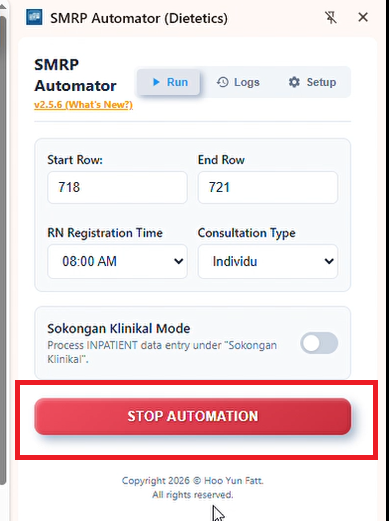
Figure 11.1: Location of the Stop Automation button
📊 4: Reading the Final Success Report
Once the bot finishes typing out your list, it will show a summary of your session:
- Review the Logs Tab: Open the Activity Logs panel at the end of a run to check your results. It shows you exactly how many entries succeeded, along with a breakdown of rows that were skipped or encountered an error.
- Automatic Security Clean-up: To keep patient files private and secure, all temporary records held in the tool's volatile memory are permanently deleted the absolute moment you close your Google Chrome browser window.
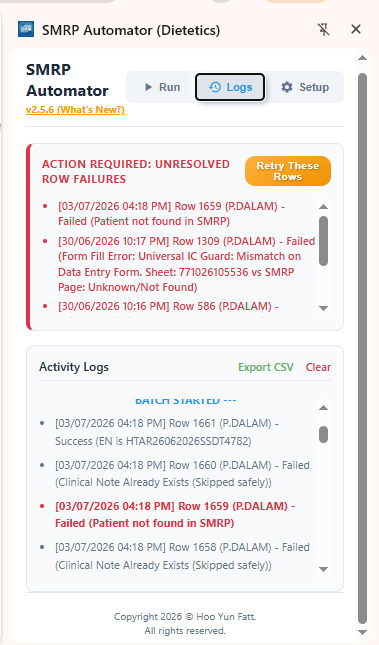
Figure 11.2: Viewing row success logs inside the Activity History panel
🔄 5: Using the "Retry These Rows" Button
If a batch run completes and a few rows were skipped or failed due to network lag, you do not have to look up the missing patients or type their files manually!
- Targeted Error Recovery: Look directly at the Logs tab inside the helper window. You will find a button labeled Retry These Rows located directly under the "Action Required: Unresolved Row Failures" section.
- How It Works: When clicked, the tool scans the session logs, isolates only the rows that ran into issues, and rerun only the failed rows. Note: you are not require to manually type the failed row number.
- Protects Data and Saves Time: The bot automatically passes over any rows that were already completed successfully.
💡 Pro-Tip for Retrying: If a row was skipped because of a "Missing Data" note, open your spreadsheet and fix the empty columns before clicking the Retry button! This ensures the bot succeeds on its next attempt.
Video 11.3: Retry Failed Rows
📋 6: Troubleshooting & Error Guide
While running multi-row automation, the bot might skip a row if it runs into an issue with the data or the SMRP Page. Below is the complete list of every error message you might see in your logs, why it happened, and exactly how to fix it:
| What the Log Says | What It Actually Means | What Action You Need to Take |
|---|---|---|
| "Missing IC Number in spreadsheet" | The row you are trying to process does not have a patient Identity Card (IC) number typed into your sheet. | Open your E-Pelaporan, fill in the missing IC number for that patient row, and hit the Retry button. |
| "Skipped. Future date error found in encounter date..." | The date entered in the spreadsheet is later than the today's date, causing the SMRP system to reject the record. | Correct the typo in E-Pelaporan's date column. |
| "Patient not found in SMRP" | The bot searched for the patient's IC number inside the SMRP portal, but the website replied that no such person is registered in the system. | Verify if the IC number was typed correctly in your E-Pelaporan. If it is correct, you are require to manually registered the patient details in the SMRP directory before retry. |
| "Universal IC Guard: Mismatch on..." |
|
Retry this row by toggle off the option Strict IC Match Guard in Setup tab and click Fetch & Fill Clinical Data button. |
| "Universal IC Guard: Mismatch on Data Entry Form. Sheet: xxxxxx vs SMRP Page: Unknown/Not Found" |
Possible causes:
|
|
| "Patient Summary Page failed to load" / "Patient Search Timeout" | Network slow or congestion. | No manual changes are needed. Simply click the Retry These Rows button once the batch completes to attempt entry again. |
| "Registration form failed to load" / "Add Clinical Support Button not found" | Network slow or congestion. | Simply click the Retry These Rows button. |
| "Dietetic form not available..." / "Dietetic Data Entry Form failed to load" | Network slow or congestion. | Simply click the Retry These Rows button. |
| "Timeout: SMRP Page failed 5 consecutive times" / "Timeout waiting for..." | Network slow or congestion, forcing the bot to max out its internal multi-attempt safety cap. | Simply click the Retry These Rows button. |
| "Skipped. Record already existed" / "Clinical Note Already Exists" | The bot discovered that this exact patient record, registration number, or clinical note was already typed and saved in the system previously. | No action needed! |
| "Skipped. Incomplete data." | The SMRP portal rejected the submission because mandatory clinical questions on the screen were left completely blank. | Ensure that all informations in E-Pelaporan are filled out properly before executing the automation. |
| "Failed to register after 15 auto-increment attempts." | The background script automatically tried 15 different registration numbers to bypass duplicates, but all of them were already taken in the system. Note: this limit will be increase to 50 in next updates. | Go to the extension setup dashboard and update your Next RN Sequence text box to a higher number block to avoid collisions. |